How to free up iPhone storage without deleting photos
You can free real space without touching your photo library: turn on Optimise iPhone Storage, empty Recently Deleted, offload unused apps, clear large Messages attachments and remove offline video. Without a paid iCloud plan the biggest lever is still removing files — and cutting four near-identical shots to one is not losing a photo.
By Emre, who builds Slean. Updated 1 September 2026.
The instinct behind this question makes sense: photos feel irreplaceable in a way apps and downloads don't, so the idea of freeing space without touching them is appealing. Several of the options below genuinely do that. One caveat sits underneath all of them.
Optimise iPhone Storage
- 1Settings → tap your name at the top → iCloud → Photos.
- 2Choose Optimise iPhone Storage instead of Download and Keep Originals.
With this on, full-resolution originals live in iCloud and your phone keeps smaller versions, downloading the original again only when you open a photo and need it. This is the single biggest space recovery available that touches zero photos — nothing is deleted, and every photo is still there.
The cost: it requires iCloud Photos to be on, which for most people means a paid iCloud storage plan once the free 5 GB is gone. And it needs a connection. Open an old photo with no signal and no Wi-Fi, and you may get a blurry placeholder until the original downloads.
Empty Recently Deleted
This one is easy to miss because it feels like it shouldn't count as "not deleting photos" — but if you've already deleted things in the past month, they're sitting in Recently Deleted holding their full size for about 30 days. Emptying it (Recently Deleted → Select → Delete All) doesn't remove anything from your active library; those photos are already gone from it. It just stops paying rent on files you already decided to lose.
Offload unused apps
Settings → General → iPhone Storage → Offload Unused Apps, or offload individual apps from the same list. This removes the app binary but keeps its data, so reinstalling restores your place. It has nothing to do with photos and can return real space if you have apps you open a few times a year.
Messages attachments
Settings → General → iPhone Storage → Messages → Review Large Attachments. This clears photos and videos sent through Messages, which is a separate store from your camera roll — deleting them here doesn't touch anything in the Photos app.
Downloaded podcasts and offline video
Podcast apps and streaming apps that support offline playback keep downloaded episodes and videos in their own storage. Check each app's downloads list, or look at its size under Settings → General → iPhone Storage — a backlog of unplayed downloaded episodes is common and easy to clear.
Compress large videos instead of deleting them
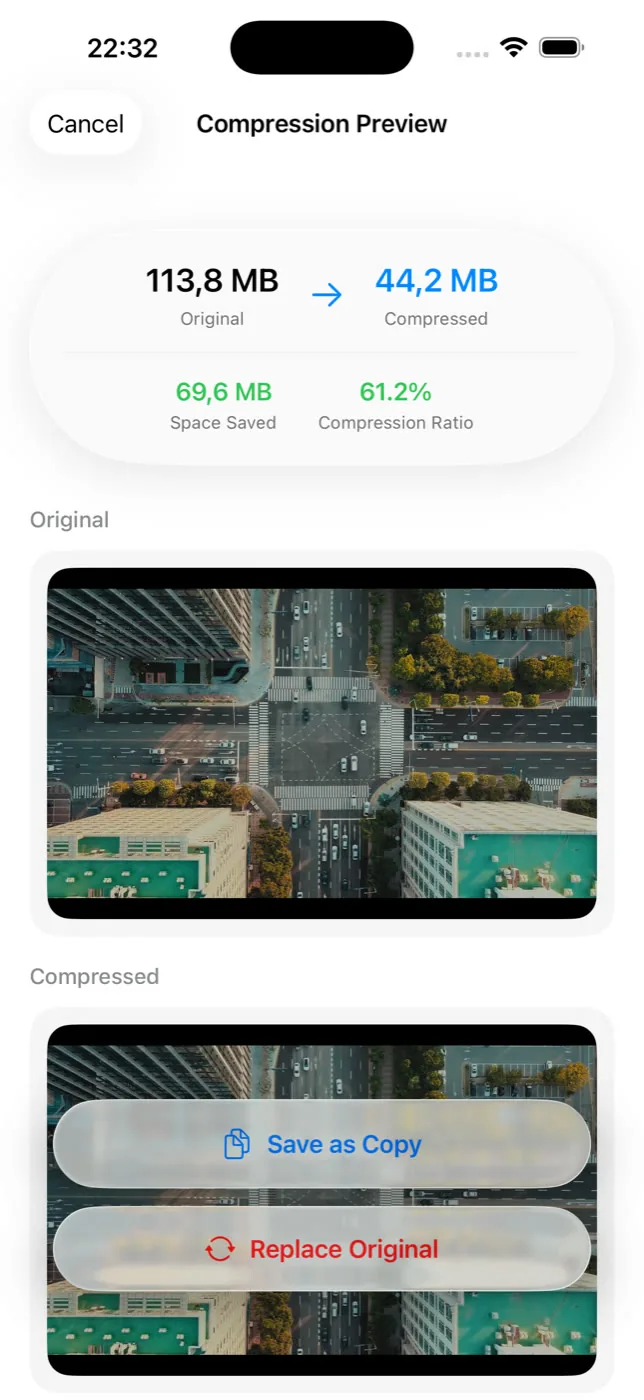
This is the one option on this list that does touch your library, but not by removing anything. Compressing a large video can return most of its space while keeping the footage, at some cost to quality in motion and low light. Slean previews the size saving before you commit and lets you keep the original alongside the compressed copy rather than replacing it outright.
Where these run out
All five options above are real and worth doing first. But if you're not paying for iCloud storage — or you already are and you're still full — the ceiling is the same: your phone can only optimise storage it doesn't have to keep locally, and it can only offload data that belongs to something other than your library. Eventually the biggest category left is photos and videos themselves, and the only way to reduce that is to have fewer of them.
That's worth separating from what most people are actually afraid of. Losing a photo means losing a moment you can't get back. Deleting five of six near-identical frames of the same moment isn't that — it's keeping the moment and losing five redundant files of it. It only feels like the same fear because both actions use the word "delete".
Android has no direct equivalent of Optimise iPhone Storage, but Google Photos' Free up space does a related job. How storage triage works on Android.
Questions people actually ask
- Does Optimise iPhone Storage delete my photos?
No. It keeps full-resolution originals in iCloud and smaller versions on your phone, re-downloading the original when you open a photo. Every photo is still in your library; only where the full file lives changes.
- Do I need iCloud+ to use Optimise iPhone Storage?
You need iCloud Photos turned on, which needs enough iCloud storage to hold your full library. The free 5 GB tier runs out quickly for most photo libraries, so in practice this usually means a paid iCloud plan.
- Will optimised photos be available if I have no internet connection?
Recently viewed photos usually stay cached at full quality, but older ones you haven't opened recently may show as a lower-resolution placeholder until you're back online and the original can download.
- Is emptying Recently Deleted the same as deleting more photos?
No. Anything in Recently Deleted has already been removed from your library — you deleted it earlier. Emptying the folder just releases the space it's still holding for the roughly 30-day recovery window.
- If I don't pay for iCloud, can I still free up space without losing anything?
Offloading apps, clearing Messages attachments and removing downloaded video all help without touching photos. But without iCloud storage to optimise against, those options have a ceiling, and photos and videos are usually the largest category left once you hit it.
Sources
Related reading
- iPhone storage full? Delete these first, in this orderNot everything you could delete returns the same amount of space. Here's the order that actually works, from long videos down to app caches.
- How to find your largest videos and photos on iPhoneThe Photos app can't sort by file size, so your biggest videos and photos stay hidden. What works instead, and how to shrink a file rather than delete it.
- How to delete screenshots on iPhoneScreenshots pile up faster than almost anything else in your library, and they're the safest bulk delete you can make. Here's how to clear hundreds in a few taps.
- Android storage full? Here is what to delete, in orderLong videos first, then messaging-app media, then screenshots, then duplicates, then caches. The order matters more than the effort you put in.
When the space still runs out, Slean shows you the redundant frames and the oversized videos, and lets you compress instead of delete.