iPhone storage full? Delete these first, in this order
When an iPhone is full, delete long and 4K videos first, since a few minutes of 4K can be several gigabytes. Then downloaded video in streaming apps, large Messages attachments, then photos and near-identical shots, then app caches. Photos and videos are usually the biggest category, and with iCloud Photos on, deletions sync.
By Emre, who builds Slean. Updated 1 September 2026.
"Storage Almost Full" tells you nothing about where to look. Most people respond by deleting a few apps they don't use, which barely moves the number, or by deleting a handful of photos, which moves it even less. The space is somewhere specific, and it's worth going there directly instead of guessing.
This is ordered by how much space each step actually gives back, not by how easy the step is.
1. Long and 4K videos
A nine-minute video of a car park at 4K can be two to three gigabytes on its own. This is usually the single biggest thing on the phone, and it's the thing people forget about because it's one file, not a pile of hundreds of photos.
- 1Settings → General → iPhone Storage.
- 2Wait for the list to load, then look at the size next to Photos — this includes videos.
- 3In the Photos app, go to Media Types → Videos and scroll for long thumbnails — video length is printed on each one.
- 4Delete or compress anything you don't need at full quality.
Step three is the weak link, because Photos cannot sort by file size and length is only a rough proxy for it. If you want the actual order, an app that sorts your library largest file first turns this step from a scroll into about thirty seconds.
2. Downloaded video in streaming apps
Netflix, YouTube and podcast apps that let you download for offline viewing keep those files in their own storage, separate from Photos. Settings → General → iPhone Storage lists each app with its size — a few downloaded shows or a backlog of podcast episodes can easily be several gigabytes sitting unused.
3. Messages attachments
Years of photos and videos sent and received in Messages add up quietly, and they're stored separately from your camera roll.
- 1Settings → General → iPhone Storage.
- 2Tap Messages.
- 3Tap Review Large Attachments.
- 4Scroll the list, which is sorted largest first, and delete the ones you don't need. Deleting here removes them from the conversation too.
4. Photos and near-identical shots
Photos rarely wins on any single file, but the volume adds up: retakes, bursts, screenshots, six tries at the same shot. The Duplicates album only catches exact copies — everything else needs a manual look or a similar-photo scan.
If iCloud Photos is on, deleting a photo from your phone deletes it from iCloud too. That's usually what you want — it's the same library — but it means "delete" here really does mean delete everywhere, not just locally.
5. App caches
Settings → General → iPhone Storage lists every app by size, with a recommendation to Offload Unused Apps. Offloading an app removes the app itself but keeps its documents and data, so reinstalling later restores your place. It does not touch photos or Messages, and it won't help if the app you're worried about is one you use daily.
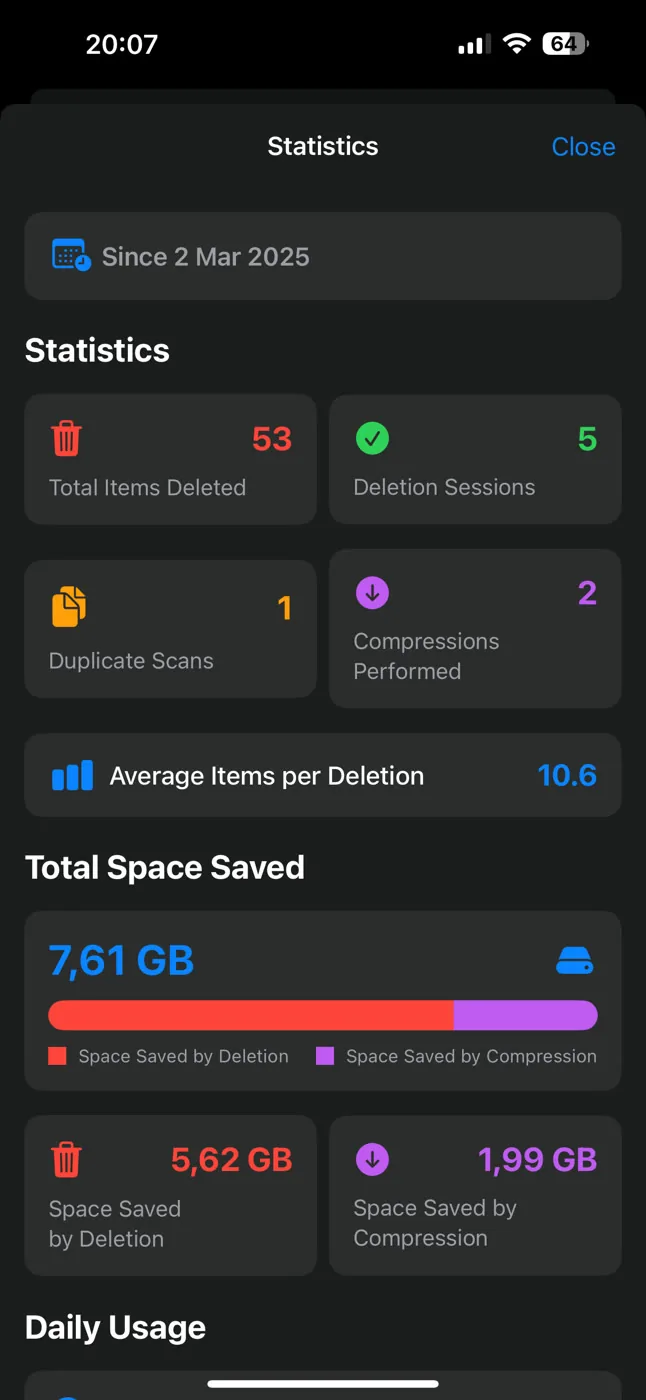
One thing all five steps share: none of it is final until Recently Deleted is empty. Deleted photos and videos sit there for about 30 days holding their full size, so a big cleanup pass doesn't return the space until you empty it, on the last screen of the deletion flow or from the album directly.
Where Slean fits
Steps 1 and 4 are the two that return the most, and they are both inside the photo library, which is the only thing Slean works on. It sorts the library largest file first — the thing Photos will not do — filters by size, type and date, and finds the near-identical shots the Duplicates album skips. Streaming downloads and Messages attachments in steps 2 and 3 stay in Settings, where the iPhone already handles them well.
The same triage works on Android, but the categories sit in different places and Google Photos adds a step of its own. Here is the Android order.
Questions people actually ask
- Why does deleting a few photos barely change my storage number?
Because photos are usually small compared to video. A handful of photos might total a few tens of megabytes, while a single long 4K video can be gigabytes. Check Media Types → Videos before assuming photos are the problem.
- Does Offload Unused Apps delete my data?
No. It removes the app itself but keeps its documents and settings, stored so that reinstalling the app restores them. It frees the space the app binary was using, not the data inside it.
- Why is my storage still full after I deleted a lot of photos?
Deleted photos go to Recently Deleted and keep taking up space there for about 30 days unless you empty it manually. Go to Recently Deleted, tap Select, then Delete All.
- Does deleting photos on iPhone also free up iCloud storage?
Yes, if you use iCloud Photos, because your phone and iCloud share one library. The space returns once the photos leave Recently Deleted, either after roughly 30 days or when you empty it.
- What takes up more space, photos or videos, on a typical iPhone?
Videos, usually by a wide margin. A single minute of 4K video can outweigh dozens of photos, which is why checking Media Types → Videos first is worth more than scrolling the camera roll.
Sources
Related reading
- How to find your largest videos and photos on iPhoneThe Photos app can't sort by file size, so your biggest videos and photos stay hidden. What works instead, and how to shrink a file rather than delete it.
- Best photo cleaner app for iPhone: five names, and how to choose between themFive iPhone photo cleaners compared on what their listings let anyone check: privacy label, cost, what they find. Plus the two-minute test for which kind you need.
- How to delete screenshots on iPhoneScreenshots pile up faster than almost anything else in your library, and they're the safest bulk delete you can make. Here's how to clear hundreds in a few taps.
- How to free up iPhone storage without deleting photosReal options that don't touch your library, where each one runs out, and why removing four near-identical shots of one moment isn't really the loss it feels like.
- Android storage full? Here is what to delete, in orderLong videos first, then messaging-app media, then screenshots, then duplicates, then caches. The order matters more than the effort you put in.
Slean covers the two steps that return the most: the large videos, and the photos you took four versions of.