How to reduce photo file size on iPhone
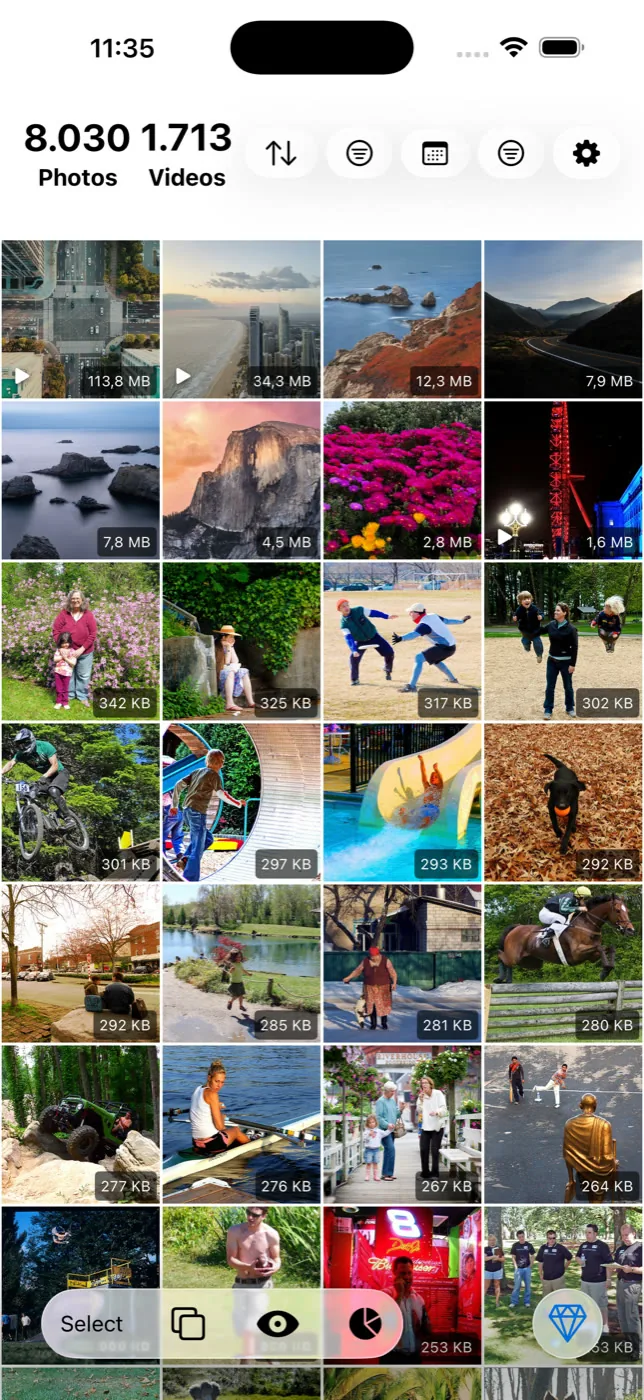
A standard iPhone photo is a couple of megabytes, so photos are rarely why storage runs out. The exceptions are ProRAW and RAW files at roughly 25 to 75 MB each, panoramas, imported camera files, and full-page screenshots. Slean sorts the whole library largest file first so these surface immediately, and compresses them with a size preview before saving.
By Emre, who builds Slean. Updated 1 September 2026.
A normal iPhone photo is a couple of megabytes. A thousand of them will not fill a modern phone the way a handful of long videos will. If your library feels heavy and you assume photos are the reason, it is worth checking that assumption before you start compressing everything in sight.
The photos actually worth finding
A small number of file types weigh far more than an ordinary snapshot, and they are the ones worth hunting down specifically rather than treating your whole library as suspect.
- ProRAW and RAW. Roughly 25 to 75 MB each, because they store far more sensor data than a compressed JPEG or HEIC. Only shows up if you shoot in ProRAW mode on a supported iPhone — most people never turn it on, but if you did once and forgot, this is usually where the surprise is.
- Panoramas. Stitched from many frames into one very wide image, so the pixel count, and the file size with it, is much higher than a standard photo.
- Imported camera files. Anything brought in from a real camera — a DSLR, a mirrorless body, a drone — is usually a different weight class from anything your iPhone's own camera produces.
- Full-page screenshots. A scrolling capture of an entire webpage or document is dramatically heavier than an ordinary screenshot, because it is stitching several screens' worth of content into one tall image. Ordinary screenshots are usually small enough that clearing them out is about tidiness, not storage.
Settings → Camera → Formats: HEIF or JPEG
This toggle has been set to High Efficiency by default since the iPhone 7, and it saves photos as HEIC, which Apple describes as compressing better than an equivalent JPEG at the same visual quality. Most Compatible saves JPEG instead — larger files, but ones that older software and some third-party services still expect without converting them first.
Two things worth knowing about it. First, it changes new photos only — switching from Most Compatible to High Efficiency does not shrink anything already in your library. Second, sharing an HEIC photo to an app or service that does not support the format converts it to JPEG automatically for that share, which is why file sizes sometimes look inconsistent between what is on your phone and what ends up elsewhere — the stored original did not change, a converted copy was made for the trip.
Resizing and compressing are not the same operation
Compressing keeps a photo's dimensions the same and reduces the file size by encoding it less generously — the picture is still, say, 4032 by 3024 pixels, just stored more efficiently. Resizing actually shrinks those dimensions, to something like 2000 by 1500, which also reduces file size but permanently reduces how much detail is there if you later want to crop tightly or print large.
Which one is right depends on what you are keeping the photo for. A photo you will only ever view on a phone screen loses nothing meaningful from resizing. One you might print, or crop hard into later, is better served by compression, which trims the file without touching the pixel count. Slean does both — resize under the photo tools, compress with a size preview — so the choice is explicit rather than accidental.
Finding the heavy ones is a size sort
Photos has no size column for images, no size sort, and no size filter — the same gap it has for video. The direct route is the same fix: sort the library largest file first. Set the filter to photos, order by size, and the ProRAW files, panoramas and long screenshots rise to the top in seconds instead of turning up by accident months later. The full case for size sorting, including why length and file type are not reliable proxies, is here.
Android has the same shape of problem with a different set of menus. How storage triage works there.
Questions people actually ask
- Do Live Photos take up more space than regular photos?
Yes. A Live Photo stores a few seconds of video alongside the still image, so it is larger than a plain photo of the same scene. Turning Live Photos off before shooting, rather than after, is the only way to avoid the extra size — turning it off later does not shrink Live Photos you already took.
- Are screenshots usually large files?
No, an ordinary screenshot is small — often smaller than a photo. The exception is a full-page scrolling screenshot of an entire webpage, which stitches several screens together into one image and is noticeably heavier than the single-screen kind.
- Will switching from HEIF to JPEG shrink the photos already on my phone?
No. The Formats setting only changes how photos are saved from that point on. Photos already stored as HEIC keep their existing size and format until you export or convert them individually.
- Does converting a HEIC photo to JPEG save space?
Usually not — it can do the opposite. HEIC is already a more efficient format than JPEG at similar quality, so converting one to JPEG for compatibility often produces a larger file, and unless you delete the original HEIC you now have both taking up space.
- Why does my ProRAW folder look empty when I know I've shot in ProRAW?
ProRAW photos live in your normal camera roll alongside everything else — there is no separate folder for them. The way to find them is by file size: sort the library largest first, and ProRAW files, typically 25 to 75 MB each, are near the top.
Sources
Related reading
- How to find your largest videos and photos on iPhoneThe Photos app can't sort by file size, so your biggest videos and photos stay hidden. What works instead, and how to shrink a file rather than delete it.
- How to compress a video on iPhoneThe Photos app has no compressor. Settings → Camera → Record Video only changes future clips. Here is how to shrink a video you already have.
- How to free up space on Android without deleting photosReal options that don't touch your library: offload backed-up copies, clear caches, use an SD card, uninstall apps, compress instead of remove. Where each one stops.
Slean sorts photos largest file first, so the ProRAW files and panoramas stop hiding in a library of ordinary snapshots.