How to compress a video on iPhone
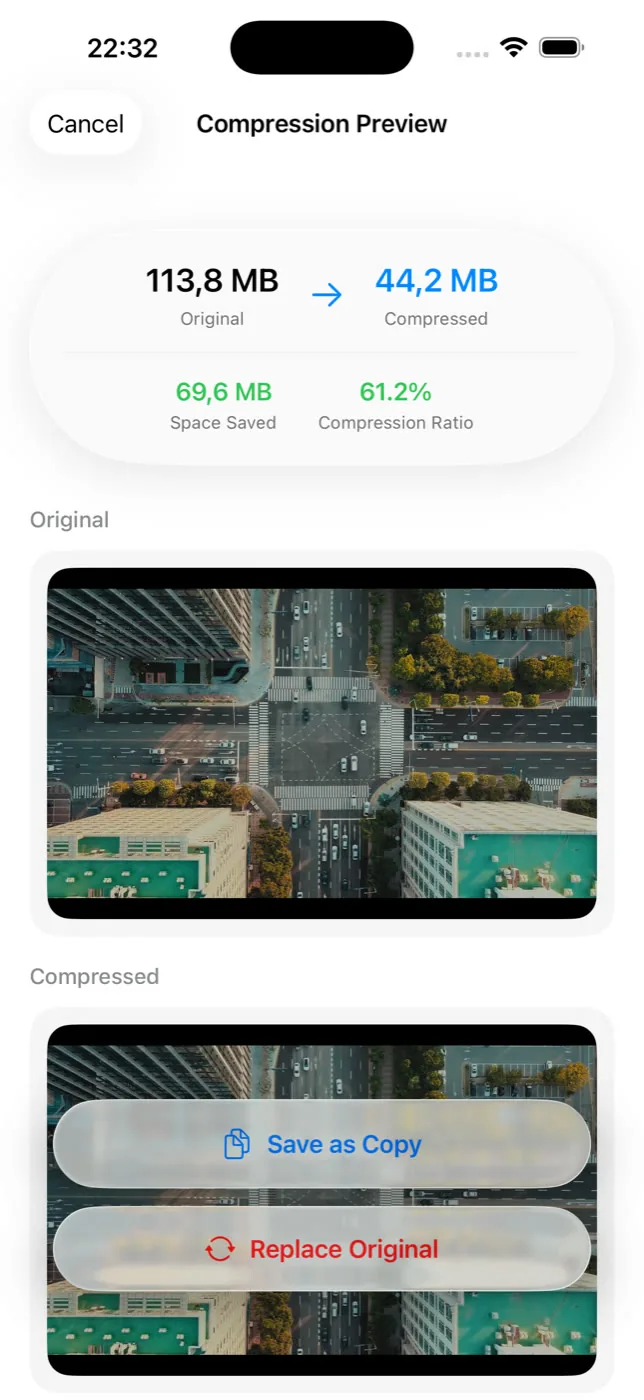
There is no video compressor in the iPhone Photos app. Settings → Camera → Record Video only changes the resolution of clips you shoot from now on, not footage already saved. To shrink an existing video, Slean compresses it on the phone and shows the size before and after so you can compare before saving.
By Emre, who builds Slean. Updated 1 September 2026.
Ask the Photos app to compress a video and it has nothing for you. No shrink button, no quality slider, no export-smaller option, anywhere. The one camera-adjacent setting that sounds like it might help is buried in Settings, and it does not touch the video already sitting in your library.
What Settings → Camera → Record Video actually changes
Settings → Camera → Record Video lets you pick a resolution and frame rate — 1080p HD at 30 fps, 4K at 60 fps, and the options between. Change it, and every clip you film afterwards comes out smaller or larger depending on which way you moved. Nothing you filmed before the change is affected. It is a setting for the future, not a fix for what is already on your phone.
Settings → Camera → Formats has a related toggle, High Efficiency versus Most Compatible, which decides whether new photos and videos are saved as HEIF/HEVC or the older JPEG/H.264. Apple's own description is that HEVC compresses better than H.264 at the same visual quality, and it has been the default since the iPhone 7. If you are still on Most Compatible, switching it is free size savings on everything you record next — again, next, not the footage you filmed last summer.
The real options for a video you already have
- Trim it. Open the video in Photos, tap Edit, drag the trim handles. Cutting footage is the one edit that removes data rather than re-encoding it. But saving over the original keeps the trim reversible, which means the original footage is still there — choose Save Video as New Clip and delete the long one if you want the space back. And it does nothing for a video that is already the length you want.
- Send it to yourself. Messages re-encodes video to fit its limits, so what arrives is smaller. AirDrop is not a compressor — it can transfer the original at full quality — so do not rely on it to shrink anything. Either way you end up with a second file rather than a smaller original.
- Compress it directly. This is the only option that changes the actual file's size without cutting content. Slean compresses photos and video on the phone and shows the size before and after, so you know what you are getting before you commit to anything.
What compression actually trades away
Compression works by lowering bitrate, and bitrate is what a video spends on detail. Motion and low light are the first things to show it — footage that was already a little soft or a little dim gets softer and dimmer, and fast motion can pick up blockiness it did not have before. Watched on a phone screen, most people never notice. Blown up on a TV, or reopened later to edit, it is a real cost, not a rounding error. The full trade-off, including when it is worth it, is here.
Compress it, or just delete it
Compression only makes sense for a video you actually want to keep. If a nine-minute clip of a car park or forty seconds of a table has been sitting unwatched for two years, deleting it returns the full size and costs nothing you will miss. Save compression for the footage you would be upset to lose — a kid's first steps, a performance, something you will actually rewatch. Where video ranks against everything else worth deleting first is here.
Keep the original, or replace it
Slean asks you this every time: keep the original alongside the compressed copy, or replace it outright. Keeping both costs you nothing in decision-making but nothing in space either, since you now have two files. Replacing is where the space actually comes back — and where the higher-quality source is gone for good, so it is worth being sure before you choose it, especially for anything you might want to edit later.
Android has no single built-in compressor either, and the options that sound like one — a gallery's "resize when sharing", WhatsApp's send compression — mostly are not. How it actually works on Android.
Questions people actually ask
- Does turning on High Efficiency in Camera settings compress the videos I already have?
No. High Efficiency in Settings → Camera → Formats only changes how new recordings are encoded from the moment you switch it on. Every video you filmed before stays exactly as it was, at its original size and format.
- Does AirDropping a video to myself shrink it?
No, on both counts. AirDrop is a transfer, not a compressor, and can send the original at full quality. Messages does re-encode to fit its size limits, but what arrives is a second file — the original in your library is untouched either way.
- Does trimming a video in the Photos app reduce its file size?
Only if you save it as a new clip and delete the original. Photos keeps a trim reversible when you save over the original, so the footage you cut is still stored and the space does not come back. Choose Save Video as New Clip, then remove the long version.
- Does compressing a video affect the copy already backed up to iCloud?
Only if you replace the original. iCloud Photos syncs whatever version is in your library, so replacing the file locally updates the version stored in iCloud too. Keeping the original alongside the compressed copy leaves the iCloud version as it was.
- Can I undo a video compression if I don't like the result?
If you chose to keep the original alongside the compressed copy, yes — just delete the compressed version and the source is still there. If you replaced the original, no; the higher-quality file is gone, which is why the choice is worth making deliberately rather than by habit.
Sources
Related reading
- How to find your largest videos and photos on iPhoneThe Photos app can't sort by file size, so your biggest videos and photos stay hidden. What works instead, and how to shrink a file rather than delete it.
- How to compress a video on AndroidAndroid has no single video compressor. Gallery resize, WhatsApp and Google Photos backup each do a different, narrower job. Here is what actually shrinks the file.
- How to reduce photo file size on iPhoneA normal iPhone photo is a couple of megabytes. If your library is heavy, it's usually a handful of file types doing it. Here's how to find and shrink them.
Slean shows the size before and after, and never replaces the original until you say so.