How to free up space on Android without deleting photos
On Android you can free real space without deleting photos: run Google Photos' Free up space, clear app caches, move media to an SD card where the phone supports one, uninstall unused apps, and compress large videos instead of removing them. Slean handles the compression step, with a size preview before saving. Each option has a limit worth knowing.
By Emre, who builds Slean. Updated 1 September 2026.
Photos feel irreplaceable in a way apps and cache files don't, so wanting to free space without touching them is a reasonable instinct. Several real options do exactly that on Android. Each one has a ceiling, and it is worth knowing where those ceilings are before you rely on them.
Google Photos: Free up space
This is usually the fastest single option. It removes the local copies of photos that are already backed up, so nothing leaves your Google Photos library — the photos are all still there, and still count against your Google storage. The full explanation of what it does and doesn't do is here; the short version is that it offloads rather than cleans, and you need a connection afterwards to open older photos.
Clear app caches
Settings → Storage, or Settings → Apps → an individual app → Storage & cache, shows cache size and a Clear cache button. This has nothing to do with your photo library — it is temporary data apps rebuild on their own. The gain is usually modest and temporary, since the cache fills back up the moment you use the app again, but it costs nothing to try, especially for a browser or a social app you use daily.
Move media to an SD card
Where the phone has a card slot — mostly Samsung's mid-range and budget lines, not most flagships, and not Pixel phones at all — Settings → Storage lets you set the SD card as the default location for new photos and videos, or move existing files onto it manually. This relocates storage rather than reducing it: the library is exactly as large as it was, just split across two places. It also means those files are only accessible while the card is in the phone.
Uninstall apps you don't use
Settings → Storage, or Settings → Apps, sorted by size, shows which apps are actually worth removing. Uninstalling clears the app and its data entirely, which is a bigger reclaim than clearing its cache but also means reinstalling later starts from scratch. Photos you took with a camera app are normally saved to the phone's shared gallery, not the app's private storage, so uninstalling a camera app does not take your photos with it.
Compress large videos instead of removing them
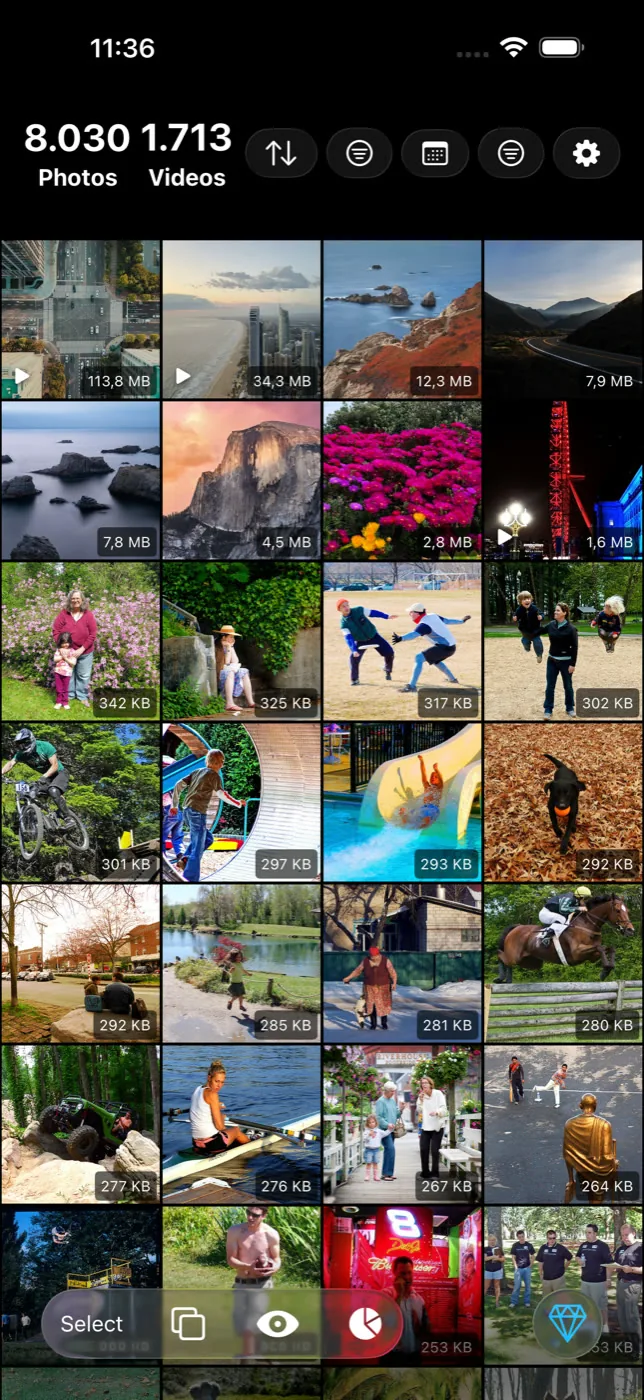
Video is usually the single biggest recoverable category, and compressing keeps the footage rather than losing it. The full picture, including what compression costs in motion and low light, is here — Slean compresses the file on the device and shows the size before and after, with the choice to keep the original or replace it.
Where this runs out
All five options above are real and worth doing in roughly this order. But caches rebuild, an SD card isn't available on every phone, and uninstalling only helps for apps you genuinely don't use. Eventually the largest category left on most phones is the photo library itself, and the only way to reduce that is to have fewer files in it.
That is worth separating from what people are actually afraid of losing. A photo is a moment you can't get back. Four near-identical shots of the same moment are not four moments — they're one moment, saved four times. Clearing three of them down to the best one keeps the moment and removes the redundant copies; it only feels like the same risk because both actions use the word "delete".
iPhone has a near-identical shape to this problem with different menus. The iPhone version of this list.
Questions people actually ask
- Does clearing app cache delete any of my photos?
No. Cache is temporary data an app stores for itself — things like thumbnails and preloaded content — and clearing it has no connection to your photo library. Apps rebuild their cache automatically as you use them again.
- Do all Android phones support an SD card?
No. Many current flagships, including every Pixel phone, have no card slot at all. It's mostly Samsung's mid-range and budget lines, and a handful of other manufacturers, that still include one — check your specific model before assuming it's an option.
- If I remove an SD card, do I lose the photos stored on it?
Not permanently, but they become inaccessible on that phone while the card is out. Anything moved to an SD card only shows up in your gallery when the card is inserted, which is worth remembering before you swap cards or hand one to someone else.
- Will uninstalling my camera app delete the photos I took with it?
Usually not. Camera apps typically save photos to the phone's shared gallery storage rather than keeping them inside the app itself, so the photos stay after the app is gone. It's worth checking a specific app's settings if you're unsure, since behaviour can vary.
- Does compressing a video count as 'not deleting' my photos?
Yes. The video stays in your library the whole time — only its file size changes, and only after you choose to save the compressed version. Nothing is removed unless you separately decide to delete something.
Sources
Related reading
- How to free up iPhone storage without deleting photosReal options that don't touch your library, where each one runs out, and why removing four near-identical shots of one moment isn't really the loss it feels like.
- "Free up space" in Google Photos does not clean anythingFree up space deletes local copies of photos already backed up. Your phone gets emptier, your library does not. Here is what to do instead.
- How to compress a video on AndroidAndroid has no single video compressor. Gallery resize, WhatsApp and Google Photos backup each do a different, narrower job. Here is what actually shrinks the file.
When the space still runs out, Slean shows the near-identical shots and oversized videos worth clearing, and compresses instead of deleting when you'd rather keep the footage.