How to choose a photo cleaner, in about five minutes
Judge a photo cleaner on six things you can check from its store listing: which platforms it supports, whether it finds similar photos and not just duplicates, whether it can sort by file size, what its privacy label declares, whether it shows ads or needs an account, and whether it claims to clean anything beyond your photo library.
By Emre, who builds Slean. Updated 1 September 2026.
Search either store for "photo cleaner" and you get hundreds of results with near-identical icons. Star ratings do not separate them, because an app that shows a satisfying number on a progress bar gets five stars from someone who never checked what it actually deleted.
These are the checks that do separate them. All six can be done on the store listing, before you install anything.
1. Does it find similar photos, or only duplicates?
This is the single biggest difference between apps in the category, and it is the reason to install one at all. Your phone already finds duplicates for free. What it does not do is group the six frames you shot of one doorway.
If a listing only says "duplicates", it is doing a job your phone already does. The difference between the two is worth understanding before you shop.
2. Can it sort by file size?
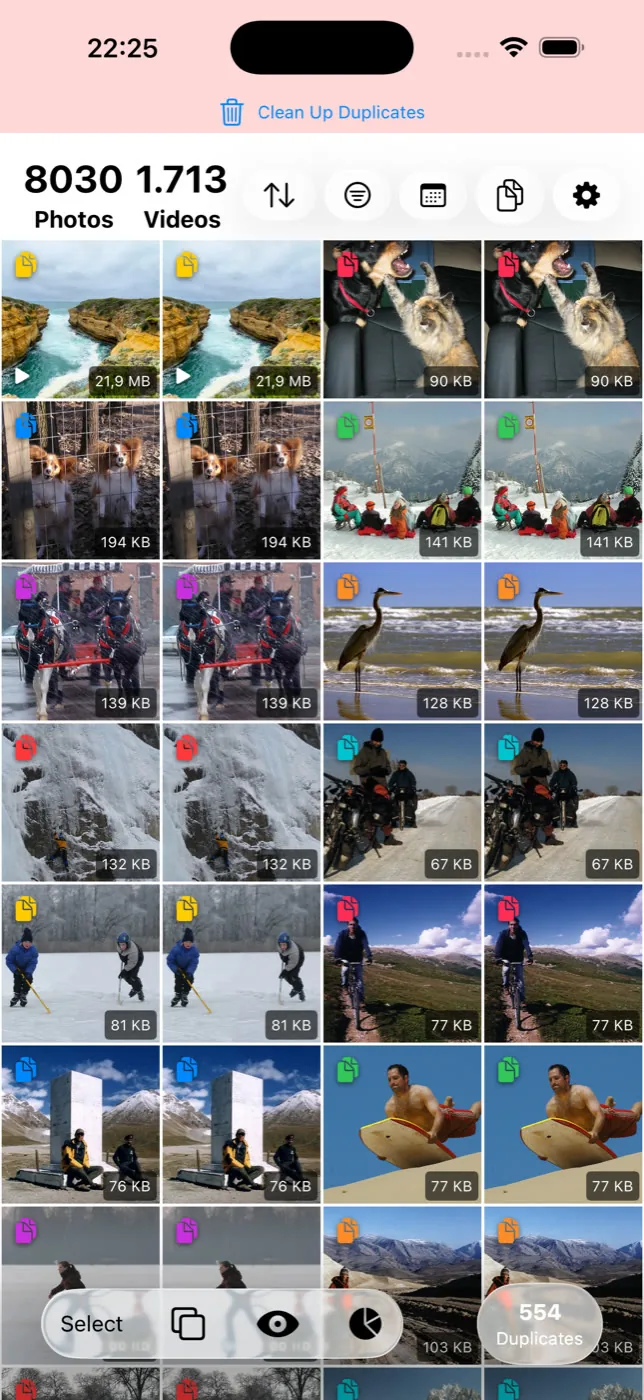
Almost none of them can, and it is the fastest route to real space. A handful of long videos usually outweighs every duplicate in a library, and neither the iPhone Photos app nor most Android galleries will order your library largest file first.
A cleaner that cannot tell you which four files are holding a third of your storage is solving the smaller half of the problem.
3. What does the privacy label say?
On the App Store listing, scroll to App Privacy. Every developer has to declare what their app collects, in a format Apple sets. "Data Not Collected" is a meaningfully different position from a list of declared identifiers and usage data, and the difference is visible in ten seconds.
Most cleaners say they process photos on the device, and most of them mean it. The label tells you about everything else. How to read one properly.
4. Ads, and what they cost you
A full-screen ad between every action is the obvious cost. The less obvious one is that an ad-supported app usually carries an advertising SDK, which is a different privacy position from the one on its marketing page. Screenshots on the listing usually give this away.
5. Does it need an account?
Cleaning a library that lives on your phone does not require identifying you. A sign-in screen in the listing screenshots is worth a second look at what else the app is doing.
6. Does it claim to clean things it cannot?
"System junk", "boost", "speed up" — photo storage and processor speed are unrelated, and since both platforms tightened storage permissions an ordinary app cannot reach inside other apps' files anyway. A cleaner that promises all of it is optimising for the screenshot, not the job.
A useful inversion: an app that describes a narrow job precisely is usually better at it than one that lists twelve. The narrow ones have to be good at the thing, because the thing is all they have.
The two-minute version
Open the listing. Does it say similar photos, not just duplicates? Does it mention sorting or filtering by size? Read the App Privacy section. Look at the screenshots for ads and sign-in screens. If all four look right, install it — and run it on a filter first rather than your whole library, so you can see how it groups before you trust it with ten thousand photos.
Questions people actually ask
- Should I be able to try a cleaner before committing to it?
Yes, and most let you. The useful test is whether you can scan and review your own library first, because how an app groups your photos is the only thing that tells you whether it suits you. An app that hides its results until you commit is telling you something.
- Do I need a photo cleaner if my phone has a duplicates feature?
Not for duplicates. Use the built-in tool first — it is free and it handles the risk-free case. A third-party app earns its place on near-identical shots, screenshots and finding the largest files, none of which the built-in tools cover.
- How can I tell if a cleaner app processes photos on my device?
Put the phone in airplane mode and run a scan. A genuinely on-device cleaner still works with the network off. Anything that stalls or asks you to reconnect is doing part of the work elsewhere.
- Why do so many cleaner apps look the same?
Because the category is cheap to build and easy to make look impressive in a screenshot: a progress bar, a large number, a satisfying result banner. That template gets cloned, which is why install counts and ratings are weak signals here.
- Is it safe to let an app delete photos in bulk?
With two conditions: it shows you every group before acting, and it never deletes anything you have not selected. Both platforms also keep deleted items in Recently Deleted or Trash for at least 30 days, so a mistake is recoverable — but back up before a large pass anyway.
Related reading
- A photo cleaner that works on both iPhone and AndroidMost photo cleaners are iPhone-only, or ship a thin Android port. What to look for if you need the same app on both phones in the house.
- Duplicate photos and similar photos are not the same problemA duplicate is a second copy of one photo. A similar photo is a different photo that looks close to it. Most phones only find the first kind.
Slean sorts by size, keeps duplicates and similar shots in separate passes, and shows you every group before anything is deleted.